
- About us
-
Services
- Back
- Development Services
-

-
-
-
- Designing Services
-
-
-
-
- Marketing Services
-
-
-
-
- Cloud Engineering Services
-
-
-
- ERP
-
-
-
- CRM
-
-
-
- Artificial Intelligence
-

-
-
-
- MVP
-
- Open Source Business
-
- Industry
- Portfolio
- Career
- Contact us
-
 info[at]startdesigns.com












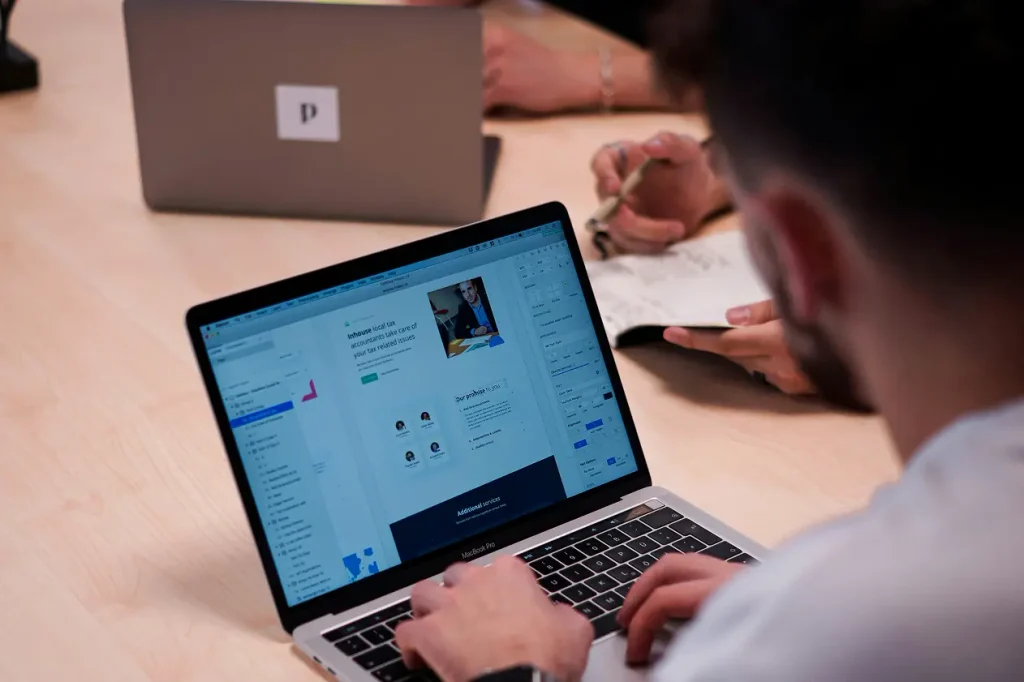
Picture a customer filling in your enquiry form without a mouse. Everything looks fine on screen, yet the Send button never receives focus. Another visitor, using a screen reader, reaches an icon and hears only the word “button”. If your own testing is all mouse and eyesight, faults like these can slip straight into a live site.
A website accessibility checker helps you spot many of these faults early. It cannot catch everything. This guide compares 10 useful tools, shows how to fix common issues and explains what you still need to test by hand.
We compiled this list from official product pages, documentation and project repositories checked on 27 November 2026. We did not run a head-to-head lab test, so the numbers are not a performance ranking. Features and prices may change in 2027.
Quick Comparison of Website Accessibility Testing Tools
| Tool | Type | Cost notes | Good starting point for |
|---|---|---|---|
| WAVE | Browser extension | Free extension; API uses paid credits | Visual page review |
| axe DevTools | Browser extension | Free and Pro versions | Developers |
| Lighthouse | Chrome auditing tool | Free to use in Chrome | A quick first check |
| Accessibility Insights for Web | Browser extension | Open source | Guided testing |
| IBM Equal Access Checker | Browser extension and developer tools | Open source | Development teams |
| ARC Toolkit | Chrome extension | Free | Detailed page testing |
| Silktide Accessibility Checker | Chrome extension | Free checker; paid platform available | Designers and content teams |
| Pa11y | Command line and Node.js | Open source | Automated test runs |
| SortSite | Desktop and web application | Paid, with trial and demo | Scanning many pages |
| Colour Contrast Analyser | Windows and macOS app | Open source | Colour contrast |
What Is WCAG, and Which Version Should You Test?

The Web Content Accessibility Guidelines, shortened to WCAG, give your testing a yardstick. Each requirement is graded A, AA or AAA. If you are free to pick a version, begin with 2.2, which W3C’s WCAG overview presents as the newest and advises teams to use. The older 2.0 and 2.1 standards have not been cancelled.
Your legal or contract requirement may name a different version, so check that first.
- Working with a US state or local government? Put 2027 on your calendar. The revised ADA Title II schedule gives public bodies with populations of at least 50,000 until 26 April 2027. Those below that figure, along with every special district government, get one more year, to 26 April 2028. Test against WCAG 2.1 AA for this particular rule, and remember that it does not cancel your other legal duties.
- Selling or offering services in the EU? Requirements under the European Accessibility Act started applying on 28 June 2025. It reaches only certain products and services, so find out whether yours are among them.
This is general information, not legal advice. Ask a qualified adviser what applies to your organisation.
10 Best Website Accessibility Checkers
1. WAVE
WAVE from WebAIM places visual markers on your page, which helps you see where an issue sits. Its extension works in Chrome, Firefox and Edge. It checks the rendered page inside your browser, including password-protected pages, without sending the page to the WAVE server.
- Use it for: reviewing headings, labels, image text and contrast in context.
- Watch for: its alerts need your judgment. A marker is not always a confirmed failure.
- Cost note: the separate WAVE API uses credits. New accounts get 100 free credits.
2. axe DevTools
axe DevTools from Deque offers extensions for Chrome, Firefox and Edge. The free version covers basic automated testing one page at a time. Pro adds guided testing, user flow testing, AI-assisted features and Jira integration, with a free trial listed.
- Use it for: finding page issues while you work in browser developer tools.
- Watch for: check which features belong to Free and Pro before planning your process.
3. Google Lighthouse
Lighthouse is built into Chrome DevTools. Run its accessibility audit to get a score and a list of failed checks.
- Use it for: a quick first look at a page.
- Watch for: the score is a weighted average of automated audits. Manual checks do not change it. A score of 100 does not prove that a page meets WCAG.
4. Accessibility Insights for Web
If you want a tool that walks you through testing, look at Accessibility Insights for Web. Its code is open source, and it runs in Chrome and Edge. Start with FastPass: it runs automatic checks, helps you follow the Tab key through a page and sets aside uncertain results for you to judge. When you need more depth, switch to Assessment, which pairs software checks with guided manual tests.
- Use it for: learning how to test, step by step.
- Watch for: the overview page describes Assessment against WCAG 2.1 AA. Check WCAG 2.2 additions separately if you need them.
5. IBM Equal Access Accessibility Checker
IBM’s open-source checker is available for Chrome, Firefox and Edge. Its rules engine includes rulesets for WCAG 2.0, 2.1 and 2.2 at levels A and AA, plus IBM’s own ruleset.
- Use it for: browser checks and development testing workflows.
- Watch for: select the intended ruleset. A ruleset does not mean every requirement can be tested automatically.
6. ARC Toolkit
ARC Toolkit is a free Chrome extension from TPGi. It inspects a page, produces a report and gives guidance on fixes.
- Use it for: a closer technical look at page structure and detected issues.
- Watch for: it suits testers who are comfortable reading technical results. Confirm which standards your current version covers.
7. Silktide Accessibility Checker
The free Silktide extension checks the open page, including staging and private pages. It highlights issues and offers keyboard order, contrast, alt text and landmark views. It also includes vision and dyslexia simulations and a basic screen reader.
- Use it for: helping designers and writers understand problems visually.
- Watch for: simulations are not the same as testing with disabled people. Silktide recommends NVDA, VoiceOver or TalkBack for serious screen reader testing.
8. Pa11y
Pa11y runs accessibility tests from the command line or through Node.js. It supports the HTML_CodeSniffer and axe runners and can export results in formats such as JSON, CSV and HTML.
npm install -g pa11y
pa11y https://example.com- Use it for: repeatable checks in a development workflow.
- Watch for: setup needs technical skill. Pa11y 10 requires an even-numbered Node.js release, version 22.13.0 or later.
9. SortSite
SortSite scans websites for accessibility against WCAG and Section 508, and also checks areas such as HTML, usability and search guidelines. It offers a Windows and Mac desktop app and a web version.
The PowerMapper store listed these per-user desktop licence prices on 27 November 2026:
| Edition | Listed price |
|---|---|
| Standard | US$149 |
| Professional | US$349 |
| Developer | US$849 |
An annual upgrade fee is listed separately as an option. Check taxes, licence terms and web-version pricing before you buy.
- Use it for: scanning many pages instead of opening them one by one.
- Watch for: confirm the WCAG version and coverage you need during the trial.
10. Colour Contrast Analyser
TPGi’s Colour Contrast Analyser is a focused desktop tool for Windows and macOS. Pick colours from your screen or enter their values. It also includes a colour blindness simulator and shows WCAG 2.1 contrast results.
- Use it for: checking text, icons, focus styles and design mockups.
- Watch for: it checks contrast, not your whole website. Use it with a broader checker.
Which WCAG Checker Should You Choose?
| Your need | Try this combination |
|---|---|
| First check of a small website | WAVE or Lighthouse, then a keyboard test |
| Developer reviewing components | axe DevTools or IBM, plus manual checks |
| Guided review | Accessibility Insights for Web |
| Design and content review | Silktide plus Colour Contrast Analyser |
| Tests during development | Pa11y |
| Large site scan | SortSite, followed by sample-based manual review |
You do not need all 10. One page checker, one contrast tool and a clear manual test process make a sensible start.
How to Find WCAG Issues: A Practical Process
Step 1: Pick important pages and journeys
Include your homepage, navigation, search, forms, login and checkout. Test each main page template. Also test menus, pop-ups, error messages and success messages.
Step 2: Run an automated scan
Save the page address, tool name, date, issue and affected element. If a second tool reports the same fault, log it once.
Step 3: Test with a keyboard
Put the mouse aside. Use Tab, Shift + Tab, Enter, Space, Escape and arrow keys where a control expects them. Check that you can:
- Reach and operate every interactive control.
- See where keyboard focus is.
- Move in a sensible order.
- Close pop-ups and leave components without getting trapped.
Step 4: Check zoom and small screens
Zoom in and narrow the browser. Look for clipped text, hidden buttons and content that forces unnecessary sideways scrolling. Our responsive web design checklist helps with device testing, but it does not replace an accessibility review.
Step 5: Try a screen reader
Use a tool such as NVDA, VoiceOver or TalkBack. Check page headings, link and button names, form instructions, errors and status updates. Where possible, include disabled users in your testing.
Step 6: Review what software cannot judge
Image text may exist but explain nothing. A form label may be present but confusing. Video captions may be inaccurate. W3C explains that evaluation tools can assist, but human judgment is still needed and results can sometimes mislead.
How to Fix Common WCAG Issues

These examples are starting points. Retest the full component after each change.
Missing or unhelpful alt text
Describe what an informative image communicates. Use empty alt text for a purely decorative image. If an image is a link or button, describe its action.
<img src="chart.png" alt="Sales rose each quarter. Full figures are in the table below.">
<img src="divider.png" alt="">
Form fields without labels
Give each field a visible label connected to its input. Do not rely on placeholder text alone.
<label for="email">Email address</label>
<input id="email" name="email" type="email" autocomplete="email">
Low colour contrast
Under WCAG’s minimum contrast criterion at Level AA, normal text generally needs at least 4.5:1. Large text needs 3:1. Large means at least 18 point, or 14 point bold. Important control boundaries and graphics generally need 3:1 against neighbouring colours. Exceptions apply.
Change the text or background colour, then check hover, focus and error states too.
Buttons and links without clear names
An icon button needs a name that software can read. Visible text is often the clearest choice. When only an icon is shown, an accessible label can help.
<button type="button" aria-label="Close dialog">
  <span aria-hidden="true">×</span>
</button>
Replace vague links such as “Click here” with text that explains the destination.
Controls that do not work with a keyboard
Use a real button for actions and a real link for navigation. A clickable div does not get the same built-in keyboard behaviour.
<button type="button" id="open-menu">Open menu</button>Add the script that opens the menu, communicate whether it is open and manage focus as the component requires.
Missing focus indicator
Do not remove focus outlines without a clear replacement.
button:focus-visible,
a:focus-visible {
  outline: 3px solid #1d4ed8;
  outline-offset: 3px;
}
Check that this colour remains visible against every background on your site.
Confusing headings
Use headings to show how the page is organised. Do not choose a heading level just to change text size. Use CSS for visual styling.
WCAG 2.2 Checks Worth Adding
Still working from an older checklist? Update it. The 2.2 release brought nine additional requirements, and the former Parsing rule (4.1.1) no longer appears in it. Start with the six Level A and AA checks below.
| Criterion | What to check |
|---|---|
| 2.4.11 Focus Not Obscured (AA) | A focused item is not completely hidden by sticky headers or other site content |
| 2.5.7 Dragging Movements (AA) | A dragging action has a single-pointer alternative, unless an exception applies |
| 2.5.8 Target Size (AA) | Targets are at least 24 by 24 CSS pixels or meet a spacing or other exception |
| 3.2.6 Consistent Help (A) | Repeated help options stay in a consistent order |
| 3.3.7 Redundant Entry (A) | Users are not asked to re-enter information unnecessarily in the same process |
| 3.3.8 Accessible Authentication (AA) | Login does not depend on a memory or puzzle test without a permitted alternative or help |
This table is a short summary. Read the full criteria and exceptions before deciding whether a page passes.
How to Prioritise Accessibility Fixes
| Priority | What belongs here |
|---|---|
| Fix first | Problems that stop people from navigating, signing in, submitting a form or paying |
| Fix next | Faults that make important content or controls hard to understand |
| Include in the work plan | Remaining improvements and verified lower-impact faults |
This order helps you plan work. It does not make any WCAG failure acceptable. Fix shared components early, since one repair may improve many pages. For online shops, include product options and cart controls; our product page design guide can support your wider page review.
Keep Accessibility Checks in Your Release Process

Test new components during design and development. Recheck templates after theme updates, redesigns and migrations. Add accessibility checks alongside your website migration QA checklist. For new design work, include accessibility goals in your UI/UX design brief.
Give each issue an owner, fix it, retest it and record the result.
Frequently Asked Questions
What is the best website accessibility checker?
There is no single best choice for every team. WAVE is useful for visual review, axe DevTools suits developer checks, and Accessibility Insights offers guided testing. Choose based on your skills and workflow.
Is there a free accessibility checker?
Yes. WAVE’s browser extension, ARC Toolkit and Silktide’s extension offer free ways to check pages. Lighthouse is built into Chrome, and axe DevTools has a free version.
Can a WCAG compliance checker prove my website is compliant?
No. Automated tools cover only part of an accessibility review. You also need manual testing and judgment against the requirement that applies to you.
How often should I check website accessibility?
Check during development and before releases. Test again after changes to templates, forms, navigation or third-party features. Schedule wider reviews as your site grows.
Will an accessibility widget fix all WCAG issues?
Do not assume that. Check the underlying code, content and user journeys. Repair the faults at their source and test the result.
Does website accessibility help SEO?
Clear headings, descriptive links and useful image text can make content easier to understand. Fixing accessibility issues does not guarantee a higher Google ranking.
Start With One Important User Journey
Choose a page that matters, such as your contact form or checkout. Scan it, complete it with a keyboard and note each barrier. Fix the problems, then test the same journey again.
Planning wider changes? Explore our website redesign services and responsive web design services. Contact Start Designs to discuss your website and ask which accessibility work can be included in your project.
About the author

Popular Posts
How to Write a Website Development RFP: Complete Guide & Checklist
September 19, 2026- 14 Min Read